TABLE OF CONTENTS
Navigation
To manually set Leak Cable Thresholds
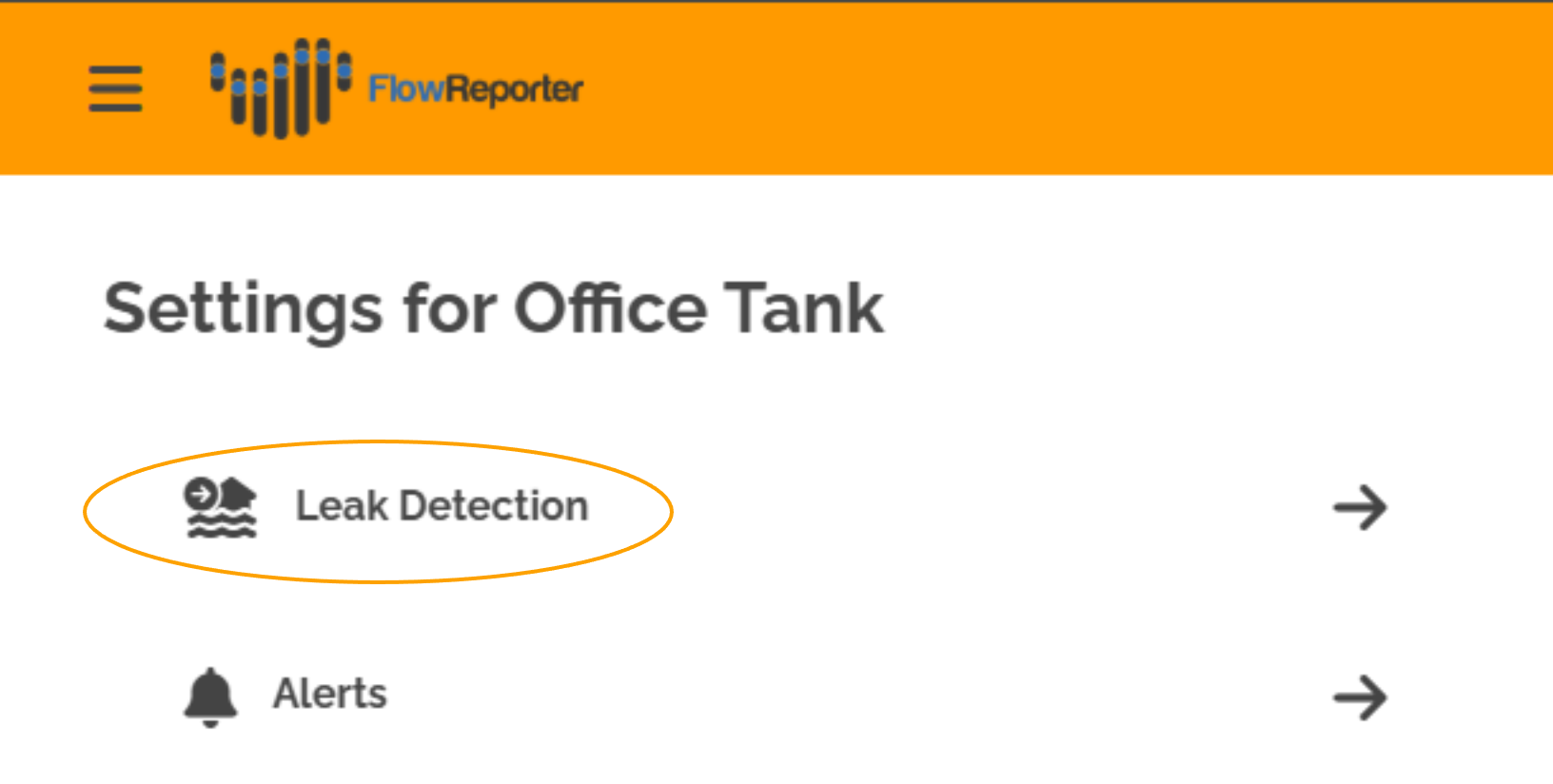
- Go to the settings page of the Leak Cable to change (See Your Dashboard if you need help)
- Go to the Leak Detection section
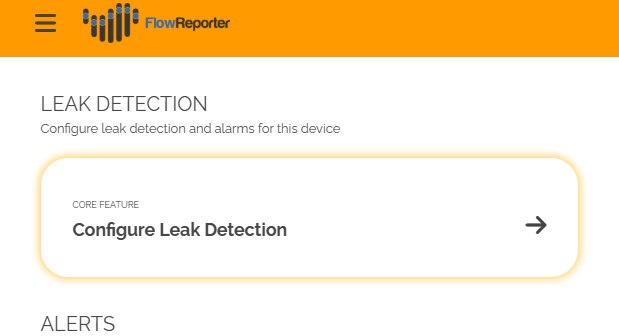
- Select Configure Leak Detection
Standard Mode
This is used for setting static thresholds, and for most people this will be all you will need.
Threshold Graph
In this mode you will see a graph showing averaged data for your leak cable over the past two week and the current thresholds.
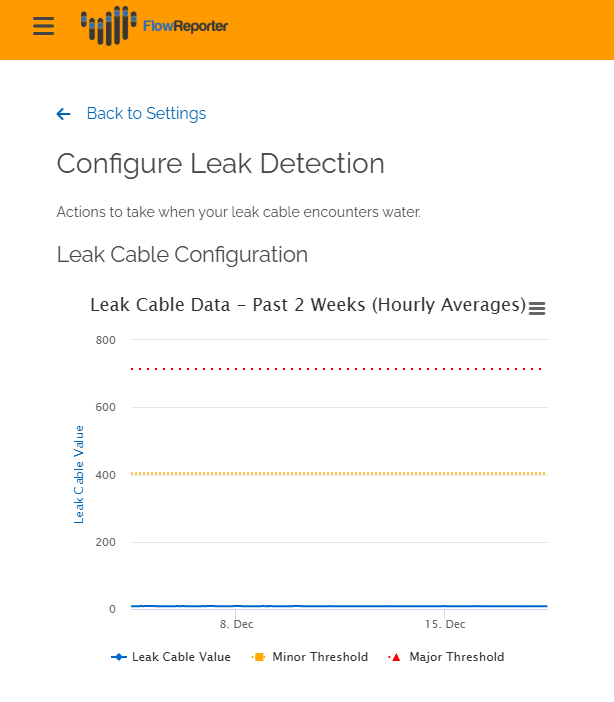
If your cable has mostly stayed dry you'll have a flat blue line like the image. If it's had some interaction with water the blue line may be much more up and down or have spikes indicating possible leaks, like this image.
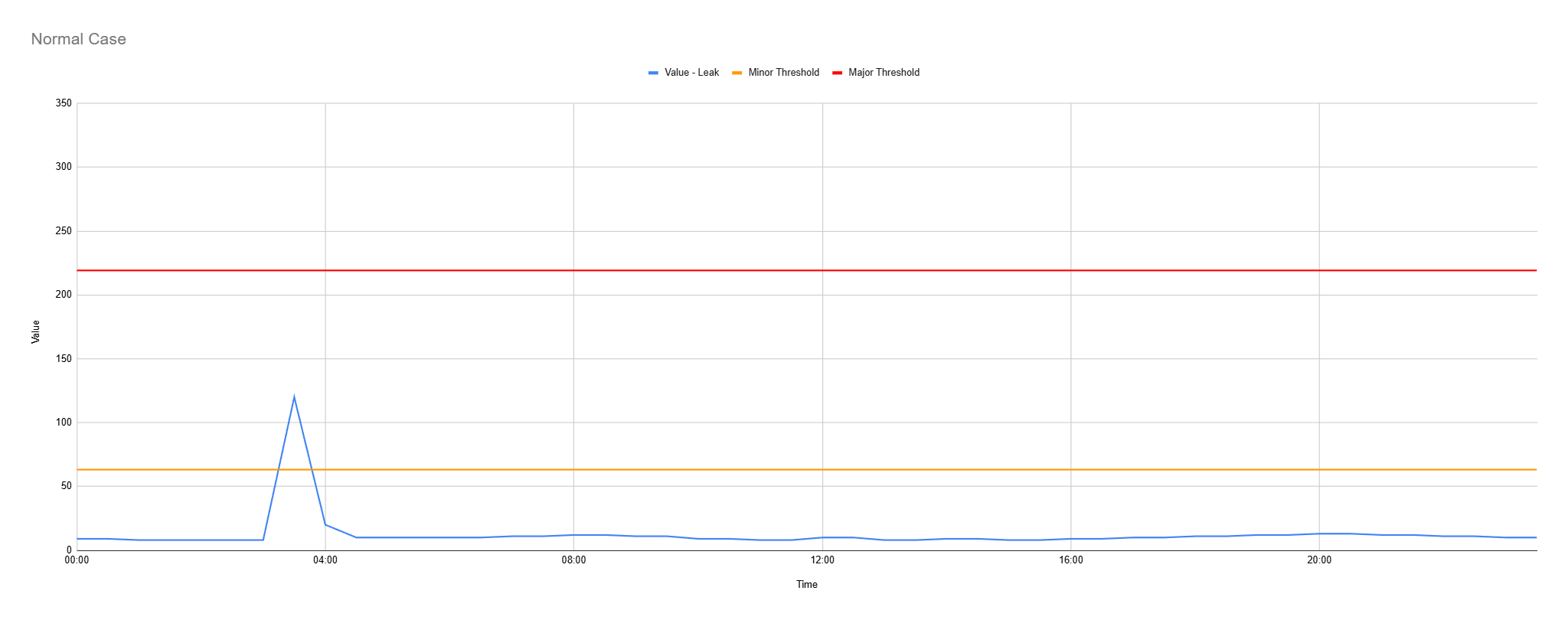 In this example, you can see a spike that goes above the minor threshold. That means that in a similar situation, based on your current settings you would get an alert. If that's what you want, that's great. If you think that is too sensitive based on your knowledge of the space the cable is in, you can adjust the thresholds upwards.
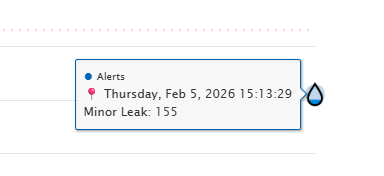
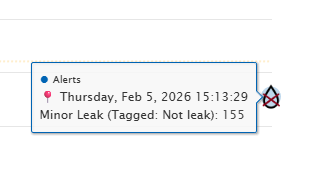
If you have had leak alerts, these will show up on your graph as droplet icons. You can hover over these for more information. If you tag the Alerts as "Not a leak" the droplet will appear with a red cross through to indicate that you do not consider it to be a leak and would prefer to have alerts for events of this magnitude.
Adjusting Thresholds
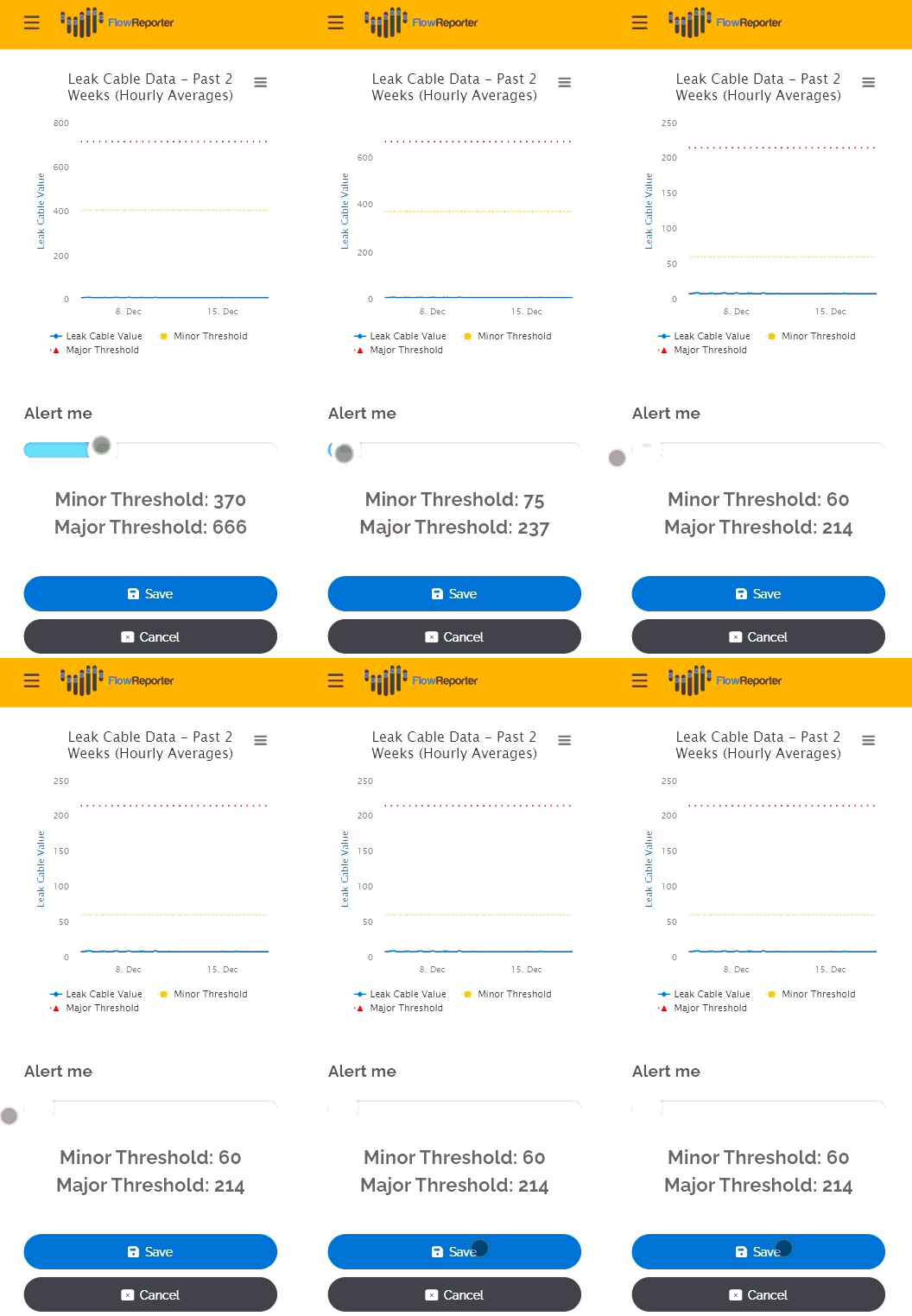
Below the graph is a slider to enable adjustment of thresholds. The adjustments will show up on the graph so you can assess based on recent data whether they're in the right place for you.
Remember to click save to store your new thresholds!
Advanced Mode
Introduction
If you are already using dynamic adjustment (explained later) you will automatically be taken to advanced mode, otherwise you can access it using the "Advanced" button near to the save button.
When in Advanced mode two things change:
- You get more granular detail on the graph (data points every minute instead of every hour)
- You get an additional slider called "Dynamic Adjustment"
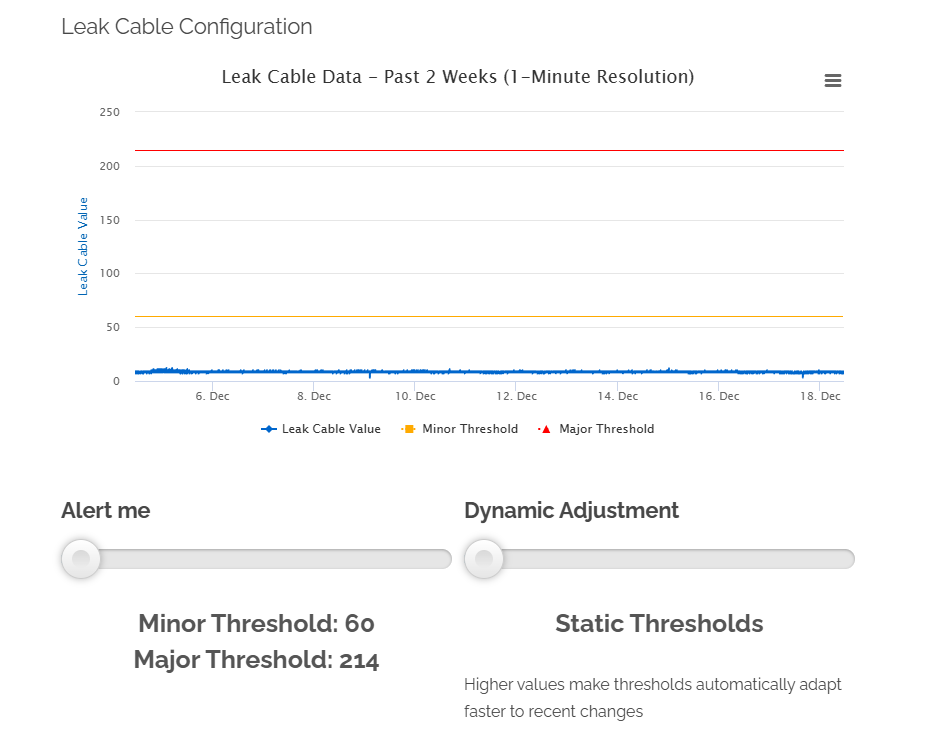
When Dynamic adjustment is set to "Static Thresholds" as above, your leak cable will behave as it would in standard mode.
Increasing the value in this slider will allow your leak cable to adjust it's own thresholds based on recent averages. For most situations this is not recommended, but in some locations leak cables may experience cyclical humidity changes based on usage of the space. This is where this option becomes helpful. NB: We recommend you set the dynamic adjustment to as low as possible given the data you are getting from your cable.
Understanding Dynamic Adjustment
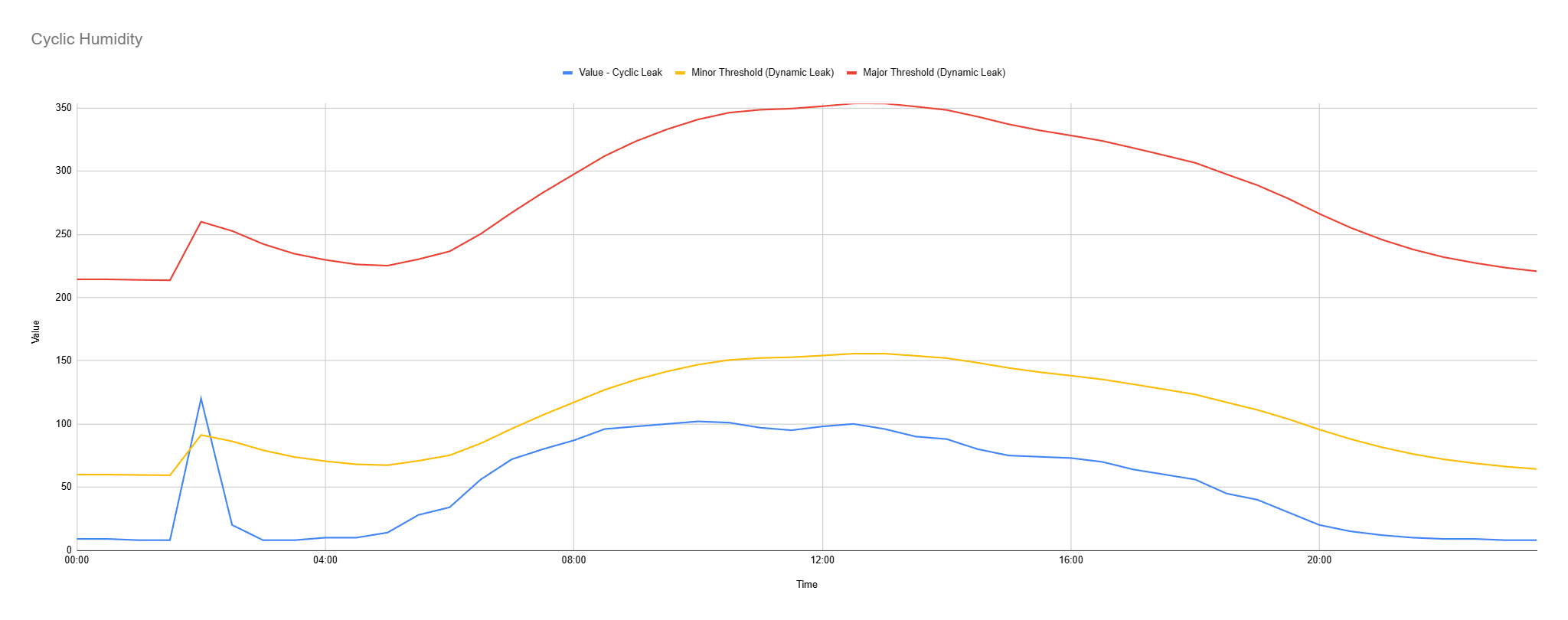
Previously we've seen the leak cable value has generally been a fairly flat line, with an occasional peak which may be a leak, but in some environments you might get a daily curve a bit like this.
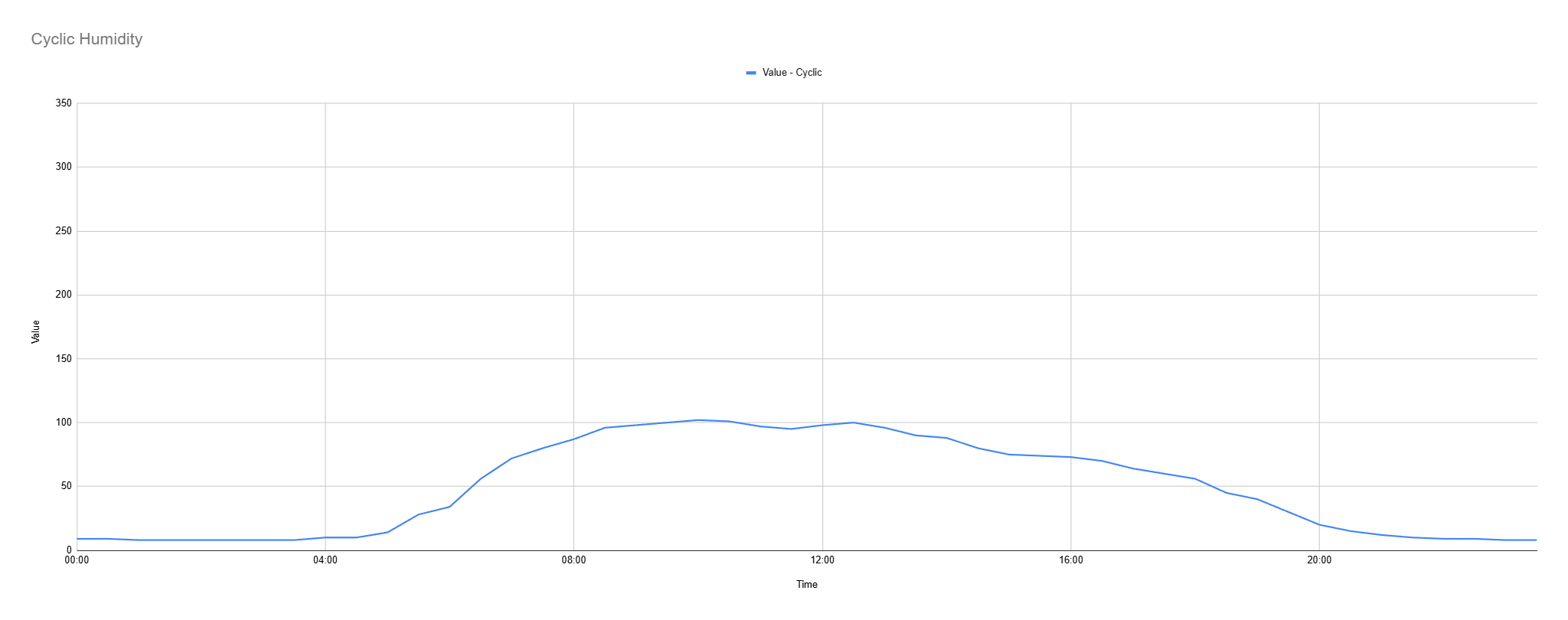
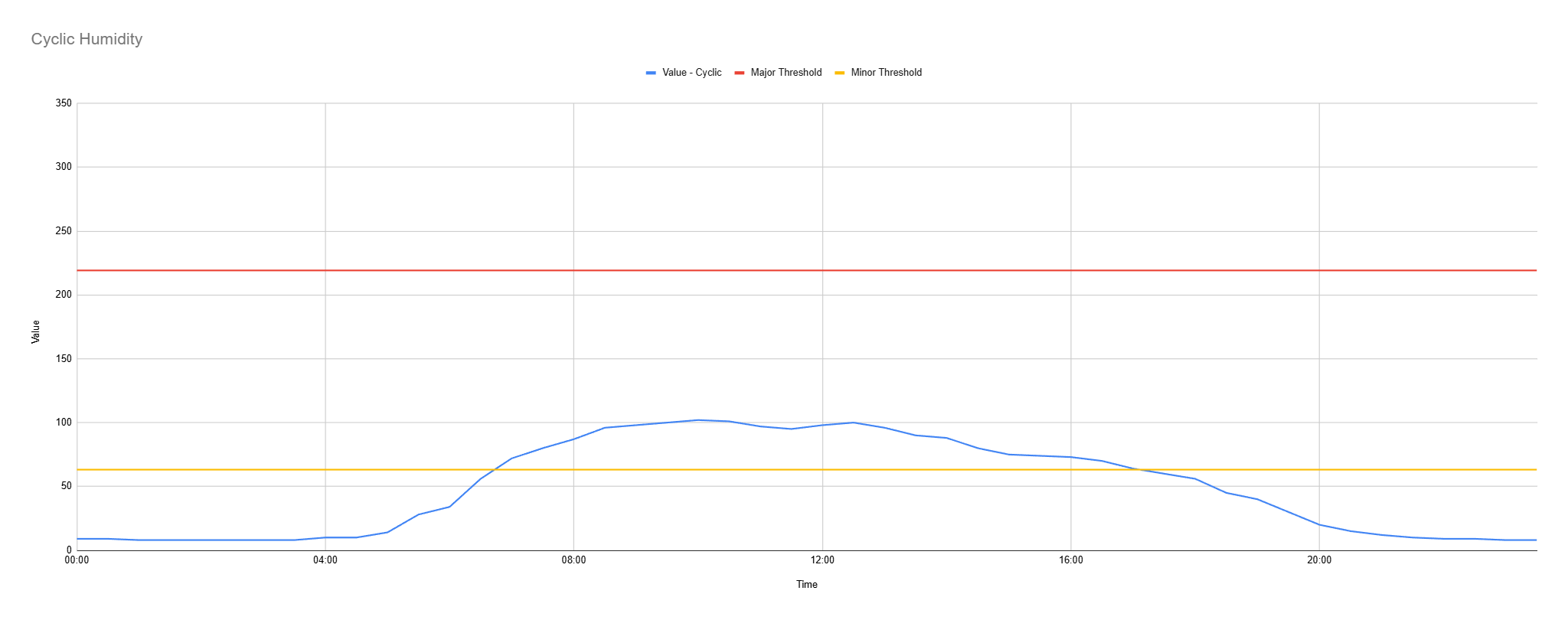
In this case where do you set the thresholds? If you set them based on the low part of the curve you'll get alerts every day when the humidity changes.
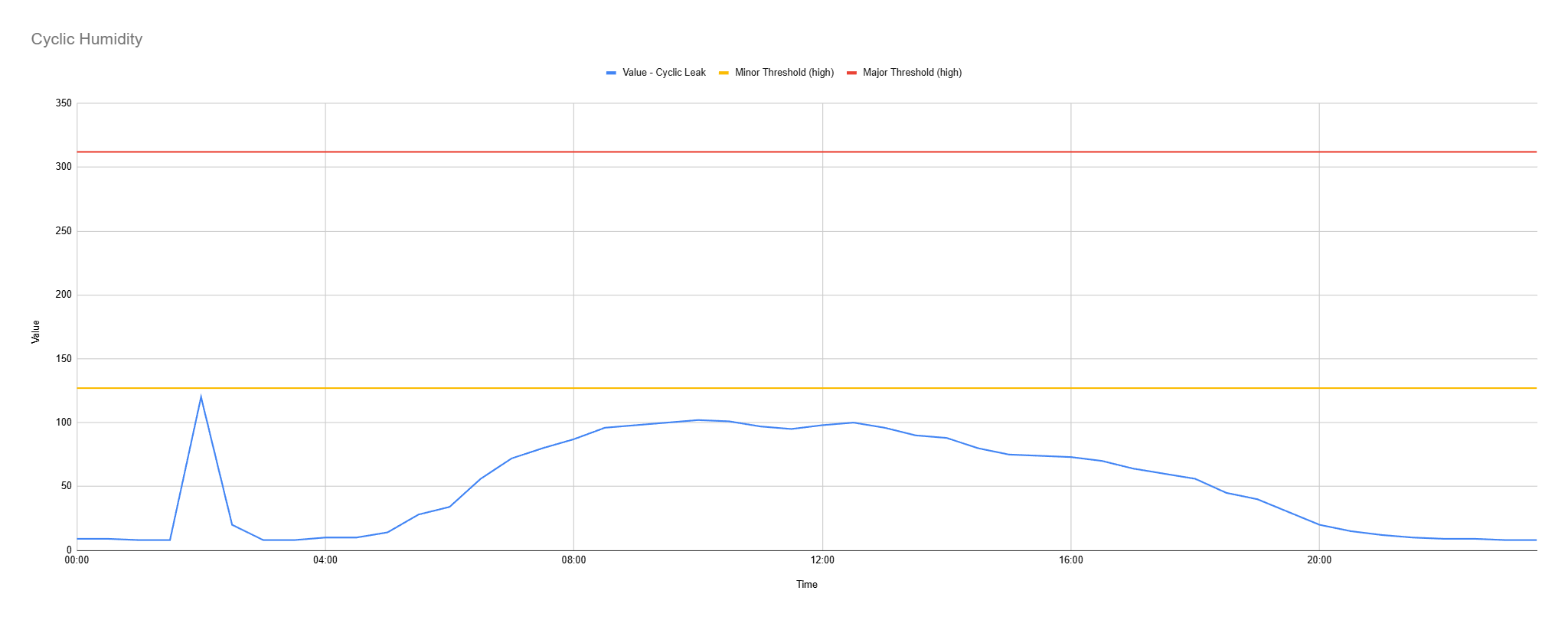
 If you set them based on the high part of the curve, you might not get alert for leak that happens in a time when humidity is usually low (e.g overnight) as shown by the spike in this chart.
To solve this issue we've introduced a dynamic adjustment, where the leak cable adjusts its own thresholds based on recent average data. Our thresholds now track the usage pattern.
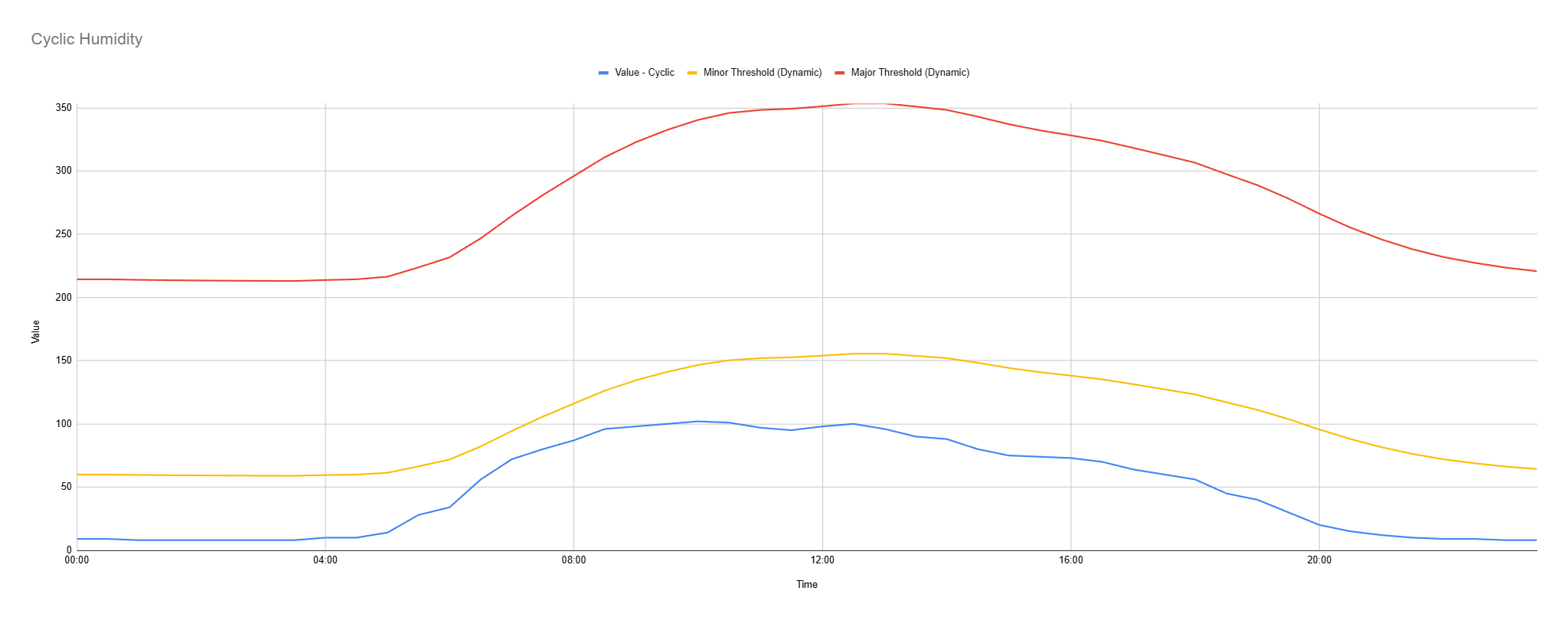
This means that when a leak spike appears in the low humidity part of the curve, you will still get an alert.
There is a risk with using this system, as a true leak that builds up slowly may take longer to detect or be missed. On that basis we recommend you set the dynamic adjustment to as low as possible given the data you are getting from your cable.
Was this article helpful?
That’s Great!
Thank you for your feedback
Sorry! We couldn't be helpful
Thank you for your feedback
Feedback sent
We appreciate your effort and will try to fix the article